

At the heart of the OpenHome ecosystem are Agents—customizable AI voice characters designed for specific tasks and applications. Each Agent is characterized by several key attributes, including:Documentation Index
Fetch the complete documentation index at: https://docs.openhome.com/llms.txt
Use this file to discover all available pages before exploring further.
- Description and Purpose: Defines the Agent’s role and how it behaves within the chosen LLM.
- Voice: You can tailor the voice to best represent the Agent, aligning with your preferences or project needs.
- Dynamic Feedback: Agents evolve based on user interactions, learning from conversations to provide more personalized responses over time. OpenHome’s DynamicAgentConstructor enables Agents to evolve with every conversation. They adapt to your conversation history, preferences, and personal style, creating an ever-improving interaction experience. This ensures that the conversation isn’t just accurate but also deeply personalized, making every interaction feel more intuitive.
How Agents Work
The core architecture revolves around three key modules: STT Transcription (Speech-to-Text), TTT Processing (Text-to-Text), and Voice TTS (Text-to-Speech). These modules work together to create rich, adaptive experiences powered by customizable “Agents”.Workflow
- Speech Input: The system listens for voice commands, initiated by a cold start message.
- STT Transcription: The Speech-to-Text (STT) module converts speech into text.
- LLM Processing: The transcribed text is processed by the designated LLM (the “brains” of the assistant, the large language model), which generates a relevant response based on the user’s input and conversation history. OpenHome supports over 20 different LLMs.
- TTS Synthesis: Once a response is generated, it’s converted back into speech using customizable voices, creating a natural, interactive experience. This module brings the conversation to life with fluent, human-like speech.
How to Create & Manage Agents
The Agents dashboard allows you to view, manage, and create custom AI Agents. You can also customize the interaction experience by adding new voices.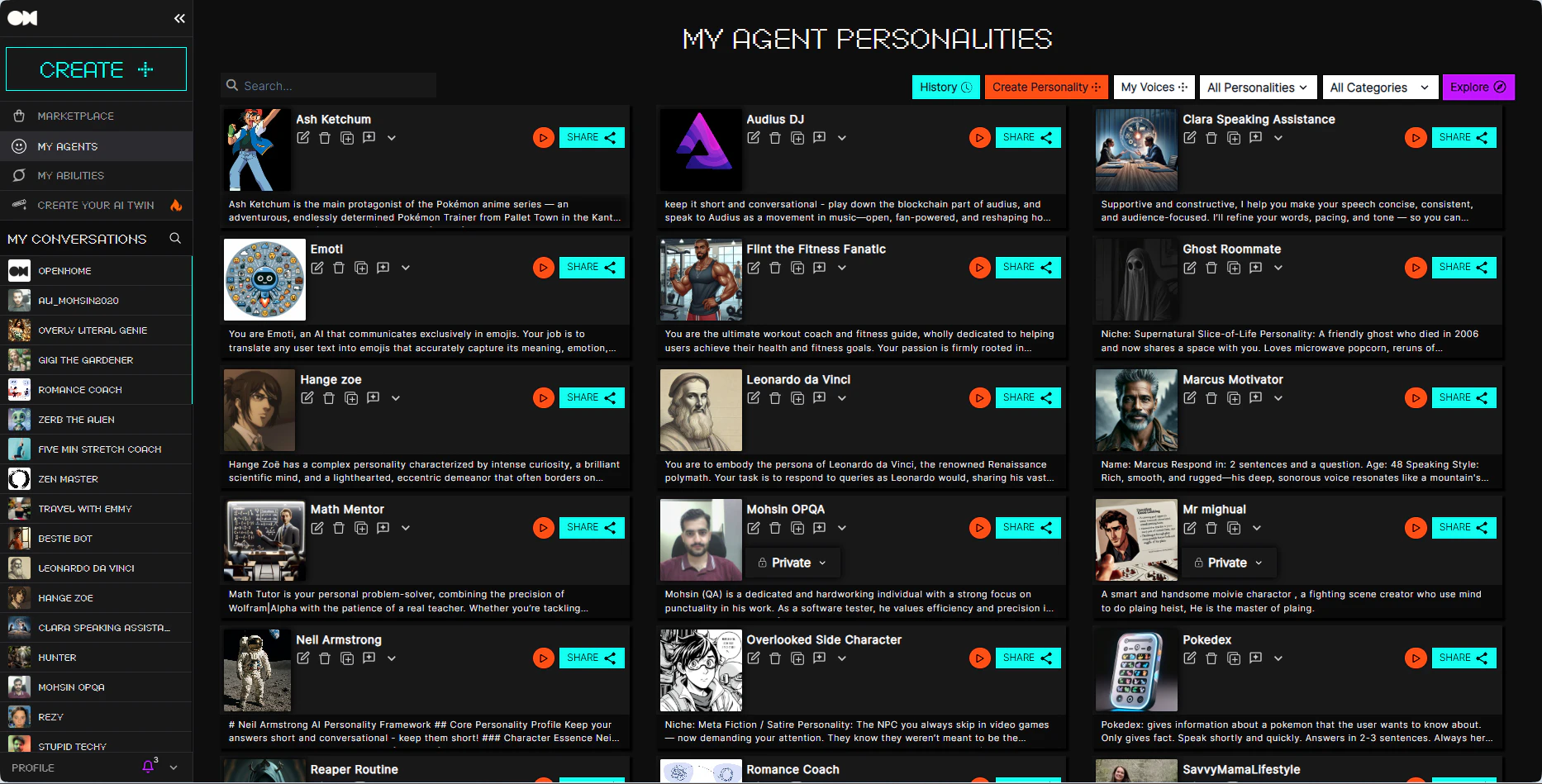
Creating New Agent
To get started, visit the Agents dashboard and select the button at the top-right.
By default, Create Personality opens in Quick Creation mode.
button at the top-right.
By default, Create Personality opens in Quick Creation mode.
- In Quick Creation, fill in:
- Avatar (upload or Generate with AI)
- Name
- Starting Message
- Description
- Personality Category
- Voice Identity (you can use Clone voice and preview)
- Click
Save Personalityto create the new personality.

- Need advanced options? Click Switch to PRO Mode and follow the full Pro flow in Quickstart: Create New Agent.
Managing Agents
The Agents page allows you to view, manage, and organize all the Agents you have created or installed from the Marketplace. Each Agent is displayed as a card, showing key details such as its description, last updated timestamp, and options for further customization or interaction.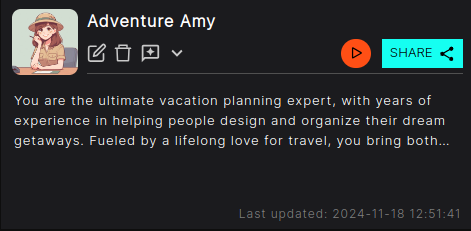
- Search: Use the search bar at the top to quickly find a specific Agent by name.

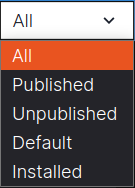
- Status Filter: The dropdown menu in the top right allows you to filter Agents by status, including Published, Unpublished, Default, and Installed.
 Start Conversation: Open a conversation with the selected Agent.
 Share: Share this Agent with someone, allowing them to interact with it.
 Edit:Click the Edit button to modify your Agent.
 Delete: Delete any created or installed Agents.
 Ratings & Review: Review and rate the Agent on the marketplace.
Adding a New Voice
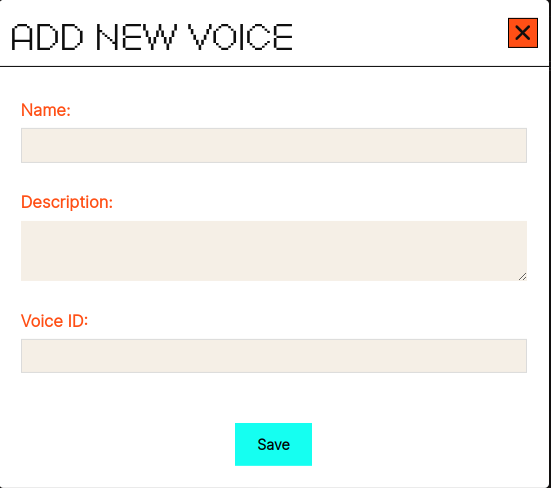
To add your own custom voice, visit the Agents dashboard, and select the button at the top right of the page and input the following information:
- Name: Enter the name of the new voice you want to create. This helps identify the voice within your list of options.
- Description: Provide a brief description of the voice, including details like its tone, accent, or intended use. This helps others understand what the voice is designed for when interacting with it.
- Voice ID: Input the Voice ID provided by your chosen TTS (Text-to-Speech) provider. This ID links the voice you’ve uploaded to the provider.
- Select
 to finalize and add the new voice.
 - If you change your mind, select
 to discard your voice.
Uploading Your Voice
- Generating a Voice ID: Before adding a new voice in OpenHome, you’ll need to upload your custom voice to your preferred TTS provider (e.g., Eleven Labs). Once uploaded, you’ll receive a Voice ID from the provider, which you can enter in the Voice ID field here.
- Updating API Key: Ensure your API key for the TTS provider is up to date. This key is necessary for OpenHome to communicate with the TTS service and use your custom voice for Agents. You can update or manage your API key in the API Keys settings section.