

Documentation Index
Fetch the complete documentation index at: https://docs.openhome.com/llms.txt
Use this file to discover all available pages before exploring further.
Don’t have an iOS device? You can onboard your OpenHome DevKit using the Terminal instead. See Onboard OpenHome DevKit via Terminal.
Prerequisites
Before starting, ensure you have the following:- An OpenHome account at app.openhome.com
- An iPhone running iOS 17.0 or later
- Your home Wi-Fi name and password
OpenHome - Voice AI DevKit App
Download on the App Store
Onboarding Steps
Get Started- Turn on your OpenHome DevKit and open the OpenHome - Voice AI DevKit App on your iPhone. Tap Get Started to begin the setup.


- The app will scan for your OpenHome DevKit and list your device. Select your device from the list and tap Connect Device.
- The app will show Device Connected and you will hear a sound from your DevKit.
- If you didn’t hear a sound, tap Try Again.
- If you heard it, tap Yes, I heard it.


- Select your home Wi-Fi network from the list and enter the password. This network will be connected to your DevKit. Once connected, you will hear a confirmation sound from your DevKit.

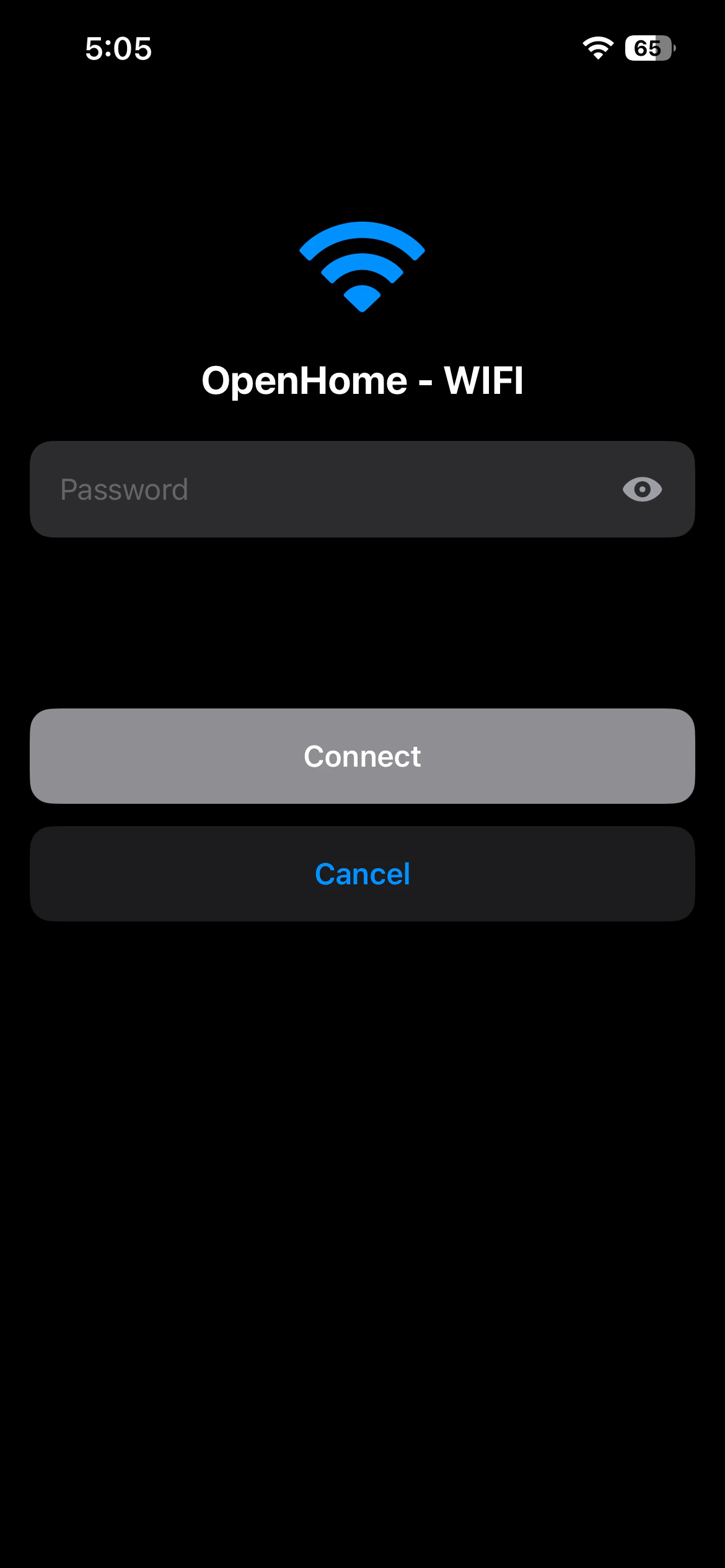

- Once connected to Wi-Fi, tap Continue.
- Sign in to your OpenHome account using Continue with Apple, Continue with Google, or Sign in with Email. If you don’t have an OpenHome account, sign up at app.openhome.com.
- Once signed in, the app will move to configuring the device. When configuration is complete, you will hear a sound from the DevKit, and then the Agent will speak its starting message.


- The Agent on the DevKit will speak its welcome message, and your DevKit will appear as connected on the app dashboard.

See also
- OpenHome - Voice AI DevKit App Overview — full overview of the OpenHome - Voice AI DevKit App
- Agents — learn how voice Agents work on the OpenHome DevKit
- Abilities — extend your Agent with custom Python-based skills
- Local Ability — build Abilities that run directly on the OpenHome DevKit hardware